Docs / Working cases
Sending the order for e-signature
If the written order is the missing piece, the Signature tab gets it signed without paper chase.
Sending
Signature → Send for signature: enter the prescriber’s name and email. AffirmDME generates the Standard Written Order from the case data and sends it through DocuSign — the prescriber gets a branded email (“Signature requested by your organization — Standard Written Order”) and signs from any device; no DocuSign account needed on their end.
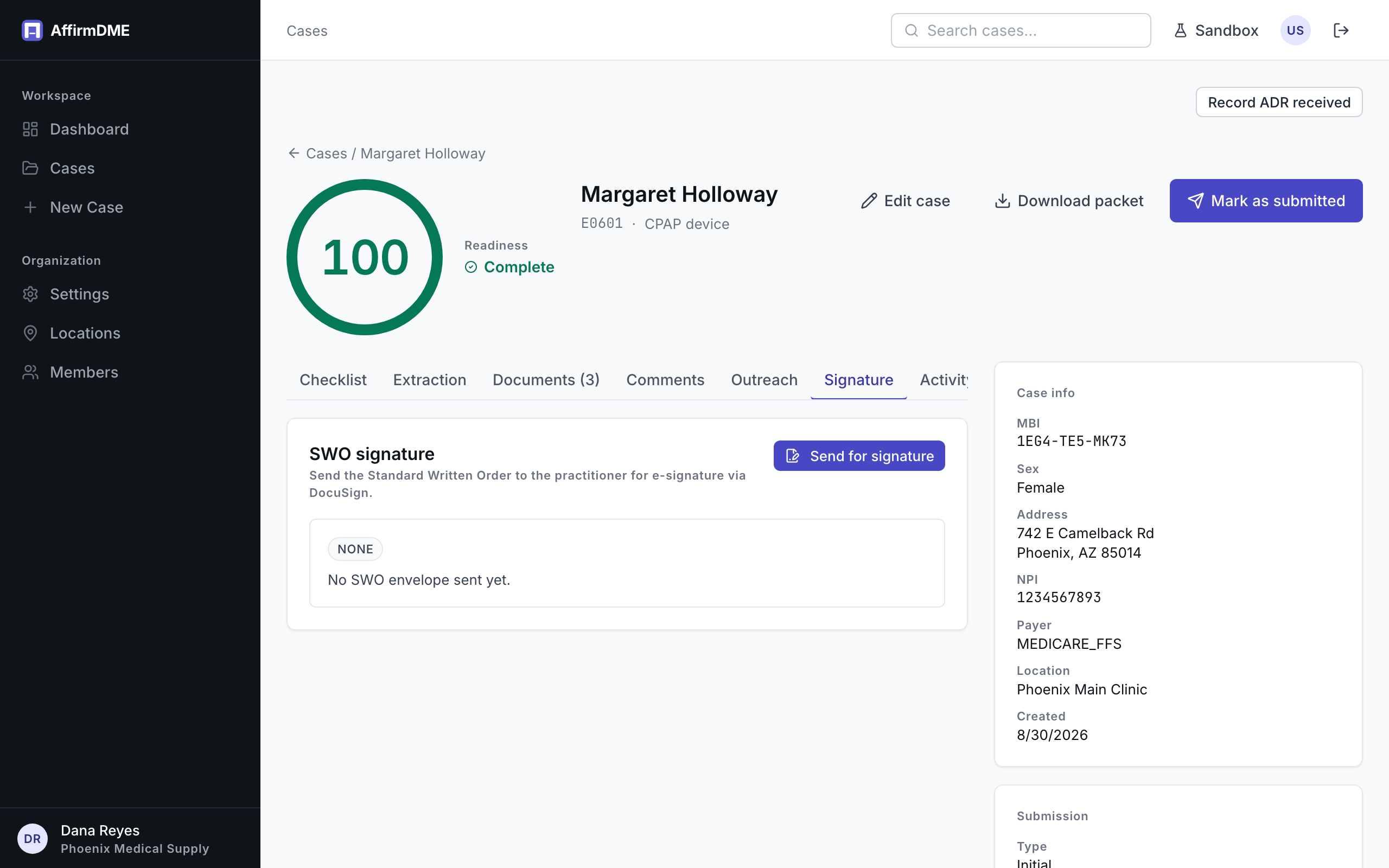
The send form shows where the case’s location stands against its included e-signatures for the billing period (5 a month on pay-as-you-go, 10 per location on Starter, 30 on Professional). Past the allowance, envelopes bill $10 each — see included cases & overage.
Status tracking
The tab shows the envelope’s live status — Sent → Viewed → Signed (or declined/expired). Status updates arrive automatically via DocuSign’s notifications; the Refresh status button forces a live check if you’re impatient.
Sent to the wrong address, or need to switch signers? Resend voids the outstanding envelope and issues a fresh one.
When it’s signed
Everything downstream is automatic: the case flips to signed, the executed order PDF and DocuSign’s audit certificate attach to the case’s documents, and extraction runs on the signed order so the checklist credits it — typically your SWO-related requirements flip to Met within a couple of minutes of the prescriber signing.